Sculpfun C2 on Mac: Software, Setup & Your First Engrave
Published: October 20, 2026
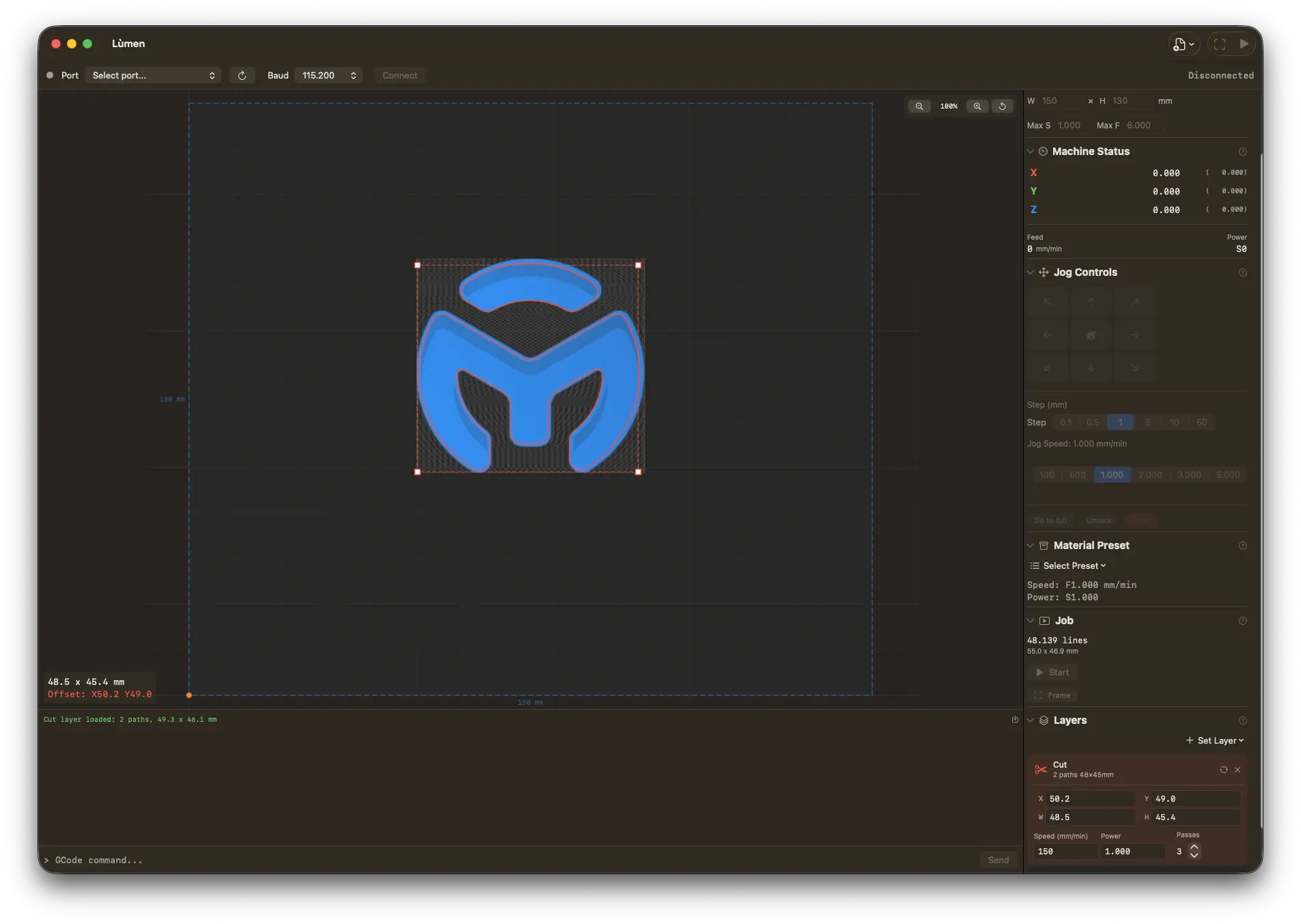
Lùmen has the Sculpfun C2 built in
Both versions are in the machine list — SCULPFUN C2 · 7 W and · 14 W. Choosing yours sets the 300 × 300 mm work area, the speed and the laser's power, and the material presets adapt to it. Native macOS, €19.99 one-time, no subscription. 3-day free trial. Requires Lùmen 3.3.2 or later.
Sculpfun launched the C2 on 17 October 2026: a compact laser engraver with a 300 × 300 mm work area and a 455 nm diode laser in two powers, 7 W and 14 W. Sculpfun lists three programs for it — Sculpfun Space, LightBurn and LaserGRBL — and on a Mac not all of them are an option. This guide covers which software runs the C2 on macOS, how to connect it, and how to get from the box to your first engraving.
Own another Sculpfun? See the Sculpfun on Mac guide for the S-series, or the C1 Mini guide.
The Sculpfun C2 at a Glance
From Sculpfun's product page:
- Work area: 300 × 300 mm, on a frame of 456 × 442 mm that weighs 1.6 kg.
- Laser: 455 nm blue diode, 7 W or 14 W. Spot size 0.04 × 0.04 mm on the 7 W, 0.06 × 0.06 mm on the 14 W.
- Speed: up to 20,000 mm/min.
- Limit switches on X and Y.
- Focus: a built-in lever. Lower it, bring the laser module down until it touches the material, and the focus is set.
- Connection: USB.
- Optional accessories: honeycomb panel, air assist, and the RA Mini rotary roller.
7 W or 14 W?
Same frame, same laser wavelength; the difference is power and spot. According to Sculpfun, the 7 W cuts up to 5 mm basswood and 3 mm black acrylic in one pass, and its smaller spot favours fine detail and photos. The 14 W cuts up to 8 mm basswood and 5 mm black acrylic and engraves faster. If you mostly engrave, the 7 W is enough; if you want to cut parts out of plywood, the 14 W saves passes.
Software for the Sculpfun C2 on Mac
Like Sculpfun's other diode machines, the C2 is driven over USB with the GRBL protocol — that is why LaserGRBL is on Sculpfun's list. GRBL is open, so any application that speaks it can run the C2. On a Mac the options are:
- LaserGRBL — free and popular, but Windows-only. Running it through a virtual machine is unreliable for a real-time serial connection to a laser.
- Sculpfun Space — Sculpfun's own free app. On the C2's product page Sculpfun writes that the Mac version is “coming soon”; its software page already offers a macOS download, so check that it lists the C2 before you count on it. Our Sculpfun on Mac guide compares it with Lùmen.
- LightBurn — cross-platform and full-featured, a one-time purchase from $99 (Core) with paid renewals for later updates. See our LightBurn alternative comparison.
- Lùmen — a native macOS app for GRBL laser engravers, €19.99 one-time with free updates and a 3-day free trial. Both C2 versions are built in from version 3.3.2.
Step-by-Step Setup with Lùmen
1. Assemble and focus
The C2 arrives as a few assemblies — front and rear beam, X axis, two Y axes — plus the laser module. Put it together following Sculpfun's manual, then set the focus with the lever: lower it, bring the module down until the lever touches the material, lock the module and raise the lever again. Repeat this whenever the material's thickness changes.
2. Connect the C2
Plug the USB cable into your Mac and switch the C2 on. In Lùmen, pick the port in the connection bar at the top of the window and click Connect. When it connects, Lùmen reads the controller's own settings — the work area and the maximum power value — so they match your machine even before you choose it.
No port in the list? Try another cable (many are charge-only), connect without a hub, and see the full checklist in our FAQ: my Mac doesn't detect my laser engraver.
3. Choose your C2
The first time you open Lùmen it asks which laser you have. Choose SCULPFUN C2 · 7 W or SCULPFUN C2 · 14 W — in the first step of the Simple sidebar (Machine & material) or in the Machine section of the Advanced one.
Picking the right power matters more than it looks. Lùmen's material presets were measured on a 3 W laser; with your C2 selected, Lùmen adapts them to 7 or 14 W, keeping the same energy per millimetre, so a 14 W laser isn't handed settings meant for one a fifth as strong. It shows the adapted numbers before you start, as the estimate they are.
4. Home, or set your zero
With limit switches on X and Y, the C2 can find its corner by itself. If its controller has homing switched on, Lùmen stays in Machine Home: it homes before each job, and where your design sits on the canvas is where it lands on the bed. If the controller reports no homing cycle, Lùmen switches to Custom Origin on its own: jog the head to the corner of your workpiece and press Set Zero Here. Either way the canvas shows where the engraving will go.
5. Import, frame and engrave
Import a photo or a logo (JPG, PNG) to engrave, or an SVG to cut, choose your material, and place the design on the canvas. Press Frame: the head traces the outline of the job with a faint laser dot, so you can check it on the workpiece. Put on the safety glasses that come with the C2, press Engrave (Start in the Advanced sidebar), and the job begins after a 5-second countdown.
Settings for the C2
We haven't measured a C2 yet, so this guide doesn't give you a table of numbers. Start from Lùmen's material presets, adapted to your laser, and run the Power/Speed Test Grid (File menu) on a scrap of the material you're going to use: a few minutes, and you have numbers measured on your machine. Our settings guide explains how to read the grid.
One number specific to the C2 is the spot size. Lùmen shows the line spacing beside the engraving resolution (10 lines/mm is 0.1 mm between lines); hold it against the beam's spot — 0.04 mm on the 7 W, 0.06 mm on the 14 W. Lines much farther apart than the spot leave gaps between them, much closer ones burn the same strip twice.
Rotary and Air Assist
RA Mini rotary roller. Lùmen has a rotary mode for roller rotaries: it asks for the two numbers rotary makers publish, the mm per rotation and the roller diameter, and takes care of the rest. Our rotary guide walks through a whole job.
Air assist. If your air pump is wired to the controller, switch on Air assist in Lùmen's machine settings and it runs with each job; the Air off / Air on button beside it lets you check that the controller answers before you start. If it doesn't, see air assist not working.
Related Guides
- How to Use Sculpfun Laser Engravers on Mac
- How to Engrave Photos on Wood with a Laser
- Laser Engraving Settings: Wood, Leather, Acrylic & More
- Best Laser Engraver Software for Mac
Get Started with Your C2 on Mac
The C2 is a GRBL machine, and it works on macOS with the right software. Lùmen is a native Mac app with both C2 versions built in, a 3-day free trial and a one-time price of €19.99.