How to Connect a Laser Engraver over WiFi on Mac
Published: June 21, 2026
Lùmen — now with WiFi
Connect your GRBL laser over USB or WiFi from a native macOS app. Image engraving with 7 dithering algorithms, SVG cutting, a built-in shape & text editor, and a guided Simple mode. €19.99 one-time, no subscription. 3-day free trial.
Most diode laser engravers connect to your computer with a USB cable. But a growing number of machines — the Algolaser Pixie and other controllers built on the ESP32 chip — can also talk to your Mac over WiFi. No cable across the workshop, no reaching behind the machine for the USB port. This guide explains how WiFi laser control works, which machines support it, and how to connect one to your Mac with Lùmen.
How WiFi Laser Control Actually Works
Under the hood, almost every hobby laser engraver runs GRBL — an open-source motion controller that accepts a stream of G-code commands. Over USB, those commands travel down a serial connection. Over WiFi, the exact same commands travel over a raw TCP socket instead. This is often called GRBL-over-TCP (or Telnet), and it's what ESP32/ESP3D-class controllers expose on your local network.
The important takeaway: only the transport changes. The bytes Lùmen sends to engrave an image are identical whether they go over a cable or over the air. That's why every feature — image engraving, SVG cutting, the shape editor, overrides, framing — works the same way on WiFi as it does on USB.
Does Your Machine Support WiFi?
WiFi is a property of the machine's controller board, not the software. Two quick ways to tell:
- Check for a WiFi/network feature in the machine's manual or app. If the manufacturer advertises a phone app that controls the laser wirelessly, the controller almost certainly speaks GRBL-over-TCP.
- Look at the controller chip. Boards built on the ESP32 (often running ESP3D or grbl_esp32 firmware) have WiFi built in. Boards that use a plain USB-to-serial chip (CH340, CP2102) are USB-only.
The machine that prompted Lùmen's WiFi support is the Algolaser Pixie (5W), but any ESP32/ESP3D-class GRBL controller follows the same approach. If your machine is USB-only, see our brand setup guides — for example Sculpfun on Mac or Ortur on Mac — and connect over USB instead.
Step 1: Get Your Machine on the Network
Power on the laser and connect its controller to your WiFi. The exact steps depend on the machine, but it's usually one of two flows:
- Join your home WiFi — via the manufacturer's app or web interface, you give the machine your network's name and password. It then gets an IP address on your LAN (e.g.
192.168.1.42). - Connect to the machine's own hotspot — some controllers broadcast their own access point (e.g.
ALA1-AP-xxxx). Your Mac joins that hotspot directly, and the machine is reachable at a fixed gateway address.
Joining your existing home WiFi is usually the better setup: your Mac keeps its internet connection, and both devices sit on the same network.
Step 2: Find the IP Address and Port
To connect, Lùmen needs two things: the machine's IP address and its port.
IP address — find it in one of these places:
- The machine's display or companion app, which often shows the assigned IP after it joins WiFi.
- Your router's admin page, under the list of connected devices.
- On ESP3D controllers, connect once over USB and send
$WRSin the serial console to print the network status, including the IP.
Port — most ESP32/ESP3D laser controllers expose the GRBL stream on TCP port 23 (the classic Telnet port). Some firmware uses a different port; if 23 doesn't connect, check the machine's web interface or manual.
Step 3: Connect in Lùmen
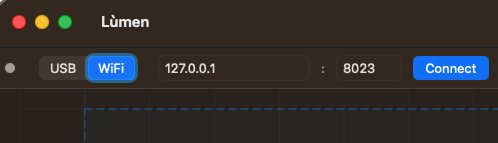
Open Lùmen and look at the connection bar at the top of the window:
- Switch the USB / WiFi selector to WiFi. The port picker is replaced by two fields: an IP address and a port.
- Type the machine's IP address (e.g.
192.168.1.42) and its port (default23). - Click Connect.
The first time you connect to a device on your local network, macOS may show a “Local Network” permission prompt. Click Allow — Lùmen needs it to reach the laser. Once connected, Lùmen reads the machine's GRBL settings and work area exactly as it does over USB, and you're ready to design and engrave.
Connect fails or times out? Work through the checklist in our FAQ: I can't connect to my laser over WiFi — controller support, network, IP/port, and the Local Network permission.
Step 4: If a Long Job Stalls — Reliable Mode
WiFi is convenient, but a wireless link can occasionally drop a packet where a cable wouldn't — and a lost acknowledgement can stall a long job partway through. Lùmen has a built-in fix:
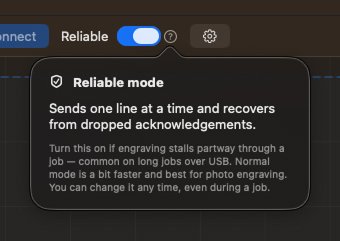
Turn on Reliable mode (the switch next to Connect). Lùmen then sends one command at a time and safely recovers from a dropped acknowledgement, so the job runs to the end. It's a little slower than the default, so leave it off for everyday photo engraving and switch it on — even mid-job — if a job stalls. The same mode also rescues long USB jobs on machines with finicky serial links.
If the machine ever goes completely silent mid-job, Lùmen shows a clear “Job stalled” warning rather than hanging quietly, so you can decide whether to stop and resume from where you left off.
WiFi vs USB: Which Should You Use?
- Use WiFi when the machine supports it and you want to skip the cable — a tidy bench, the Mac placed anywhere in the room, no fumbling for the USB port.
- Use USB for the most rock-solid link on very long, unattended jobs, or if your WiFi signal near the machine is weak. USB is also the only option for USB-only controllers.
Either way, Lùmen treats them the same: connect, design, frame, and engrave. You can switch transports between jobs whenever it suits your setup.
Get Started
Lùmen is a native macOS laser controller with USB and WiFi connectivity, image engraving with 7 dithering algorithms, SVG cutting, a built-in shape & text editor, 18 material presets, and a guided Simple mode for first-timers. It's a one-time €19.99 purchase with a 3-day free trial — no subscription.