My laser isn't in the machine list — does it matter?
Connection & setup · Updated: September 15, 2026
Short answer: no. Lùmen works with any GRBL-based laser engraver, whether or not your exact model has a built-in preset. The preset is a starting point, not a requirement — the moment you connect, Lùmen reads the machine's own configuration and takes the numbers that matter from the machine itself. Pick the closest preset, connect, and carry on.
This is the first thing to know when you set Lùmen up, because the two lists in the app look alike and get mixed up: the machine list (which model you own) and the device list (which USB port the engraver is on). This article is about the first. If your engraver is missing from the device list, skip to the last section.
What a machine preset actually is
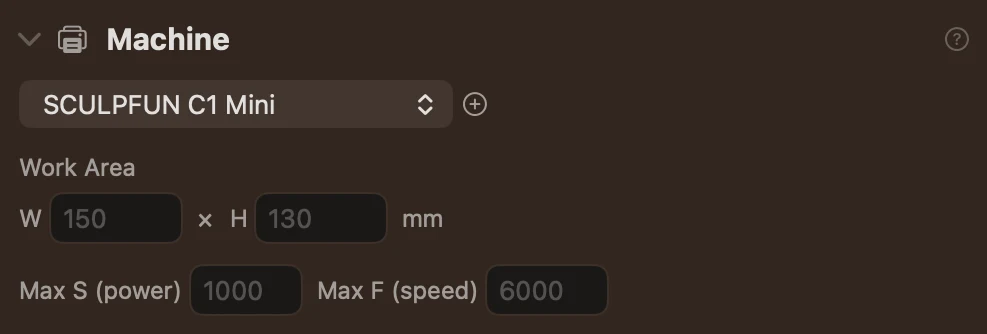
A preset is four numbers, nothing more:
- Work area — width and height of the bed in millimetres, so the canvas shows a bed of the right size before you connect.
- Max S — the maximum laser power value the firmware accepts (GRBL's
$30, usually1000), so that “100 %” in Lùmen means full power on your board. - Max F — the maximum feed rate, used as a ceiling for jog and speed sliders.
There is no per-model magic behind a preset — no firmware profile, no special commands. A Sculpfun and an Ortur with the same bed and the same $30 would behave identically under either name.
What Lùmen reads from the machine by itself
When you press Connect, Lùmen sends $$ and the controller answers with its full settings list. From that answer Lùmen takes:
- the real work area (
$130/$131, the maximum travel of each axis) — and overrides the preset's size with it. This is deliberate: a wrong or swapped preset would let you place artwork off the physical bed, and the head would drive to the edge and stall. The machine knows its own bed better than any list does; - the maximum power value (
$30) — again overriding the preset, so power percentages are always scaled to your board; - whether the machine has a homing cycle (
$22), its acceleration and maximum rates, and its buffer size — all used to drive the machine correctly without you touching anything.
So after connecting, the only thing left from the preset is the maximum feed rate, and that is just a ceiling for the jog pad. Everything that decides where and how hard the laser fires comes from the machine.
You can watch this happen: open the console (the terminal icon in the status strip at the bottom) and connect. The settings scroll by, and the work area in the Machine section updates to what the firmware reported.
What to do if your model isn't listed
- Pick the closest preset. Same brand if there is one, otherwise anything with a similar bed size. It only needs to be roughly right, and only until you connect.
- Connect. Lùmen reads the real work area and maximum power and corrects the values on the spot.
- Optionally, save it as your own preset. Switch the sidebar to Advanced, open the Machine section and press the + button beside the preset picker. Give it your machine's name and it is saved with the values currently shown — which, if you have just connected, are the ones read from the firmware. Your own presets are editable: the four fields unlock and any change saves automatically. They persist across sessions and appear in the picker below the built-in ones.
Doing step 3 after connecting is the easy path: you never have to look up the bed size or $30 in a manual, because the machine has just told Lùmen both.
Creating a preset by hand, without connecting
If you want the canvas to show the right bed before the machine is even plugged in, you can type the numbers yourself. Same place: Advanced › Machine › +, then edit Work Area (W × H in mm) and Max S. Your machine's manual usually states the work area; $30 is 1000 on almost every diode engraver, and Lùmen will correct it anyway on the first connection if yours differs. Leave Max F at the default unless you know your machine's rapid speed.
And if you think your machine deserves a built-in preset, tell us the brand, model and bed size — that is how most of the current list got there.
The other list: your laser doesn't appear in the device list
That is a different problem, and it sits before Lùmen. The device list shows the serial ports macOS has created; if your engraver isn't there, macOS doesn't see the controller yet, and no app can connect to it. In order of likelihood:
- The cable. Many bundled USB cables carry power but no data. Try a known-good data cable.
- USB-C on a modern Mac. Some controller boards (the Creality Falcon 10W is a known case) lack a small resistor that Apple's USB-C ports require, so plugged in directly they are never detected. A powered USB hub or a USB-A adapter fixes it instantly.
- The serial driver. Most GRBL boards use a CH340 or CP210x USB-to-serial chip. macOS 15 Sequoia and later ship drivers for both, so nothing to install. On older macOS versions, if the engraver never appears on any cable or hub, install the manufacturer's CH340 or CP210x driver, reconnect, and re-open the device picker so it re-scans.
The full walkthrough, with what to check at each step, is in My Mac doesn't detect my laser engraver. Connecting over the network instead of USB? See I can't connect to my laser over WiFi.
Still stuck?
Reach out to support with your engraver's brand and model and, if you managed to connect, the $$ output from the console (there's an export button at the top right). That's enough to add your machine to the list and to spot anything unusual in its configuration.