LaserGRBL for Mac: Alternatives That Actually Work
Published: April 7, 2026 · Updated: August 29, 2026
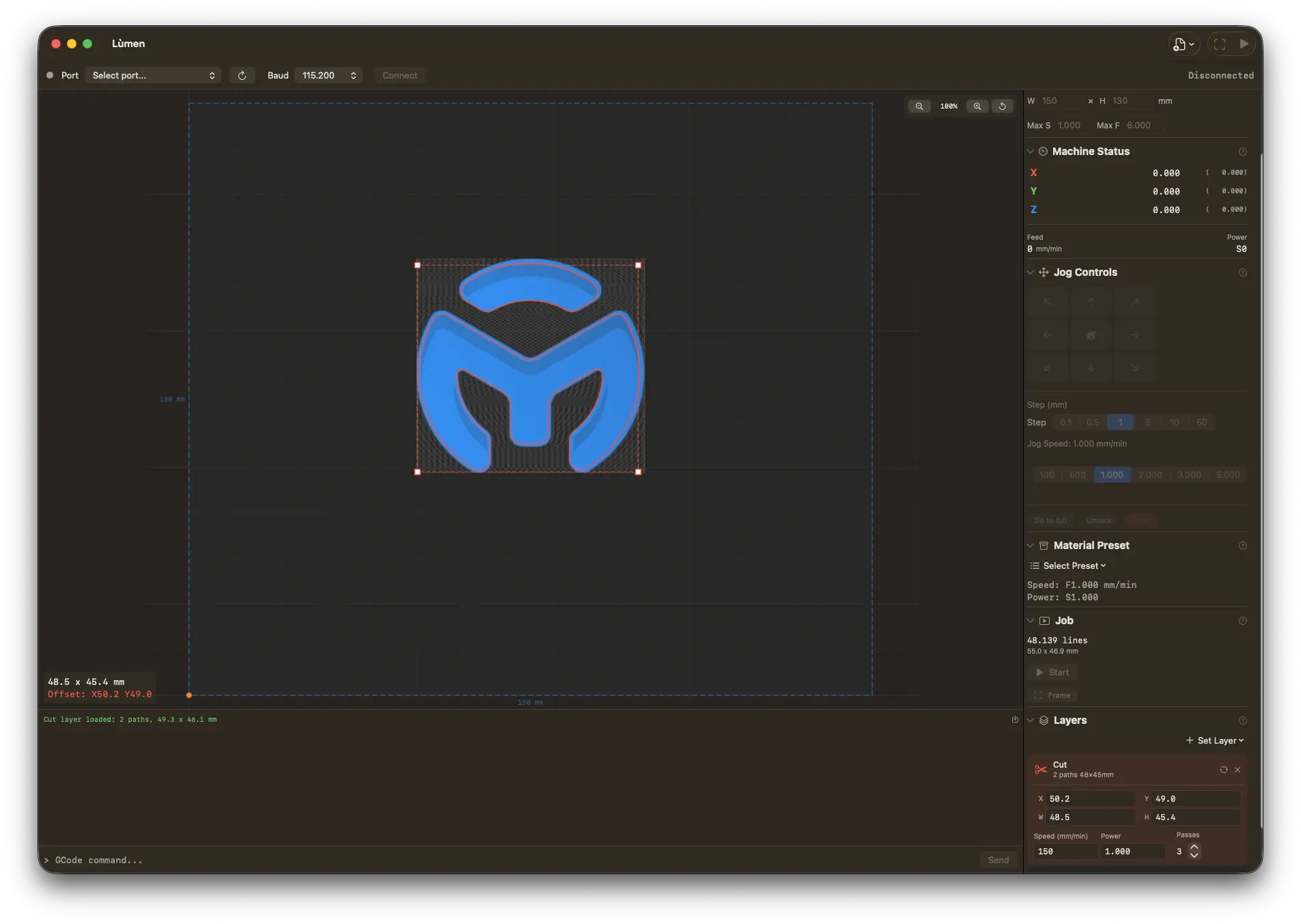
Lùmen — LaserGRBL for Mac, done right
Native macOS, no Windows VM or Parallels: image engraving with 7 dithering algorithms (including Atkinson, Floyd-Steinberg, Jarvis), SVG cutting, real-time overrides, presets for Sculpfun, Ortur, Atomstack, TwoTrees, NEJE. €19.99 one-time, no subscription. 3-day free trial.
If you own a GRBL-based laser engraver and a Mac, you've probably searched for "LaserGRBL Mac" at least once. It's the most popular free laser engraving software on Windows, and for good reason — it handles image engraving, dithering, and basic GCode sending without costing a cent. But when you try to download it for macOS, you hit a wall.
This guide explains why LaserGRBL doesn't work on Mac, what workarounds exist (and why most of them aren't great), and what native alternatives you can use instead.
Why LaserGRBL Doesn't Work on Mac
LaserGRBL is built with .NET Framework and Windows Forms (WinForms) — Microsoft technologies that are tightly coupled to Windows. It's not a cross-platform app, and there's no official macOS version. The developer has never announced plans to port it.
This isn't a simple recompile problem. WinForms relies on Windows-specific APIs for its entire UI layer. The serial port handling uses Windows COM port conventions. The whole application assumes a Windows environment from top to bottom.
So if you're on a Mac — whether it's an Intel MacBook or an M1/M2/M3/M4 machine — LaserGRBL simply won't run natively. But people try anyway, so let's look at the workarounds.
Can You Run LaserGRBL on Mac? (Workarounds)
There are a few ways to technically get LaserGRBL running on a Mac, but none of them are practical for daily use with a laser engraver. Here's why.
Wine / CrossOver
Wine is a compatibility layer that lets you run some Windows applications on macOS without a full Windows installation. CrossOver is a commercial, more polished version of Wine.
In theory, you can install LaserGRBL through Wine or CrossOver. The UI might even appear. But the critical problem is serial port access. Laser engravers connect via USB, and macOS exposes them as serial devices under /dev/cu.*. Wine has limited and unreliable support for mapping these to Windows COM ports. Even when the mapping works initially, USB drivers don't pass through reliably — you'll get random disconnections, failed handshakes, and lost data mid-job.
For an application that needs to maintain a continuous, reliable serial connection to hardware that's firing a laser, "it sometimes works" is not acceptable. A dropped connection during an engraving job can mean a ruined workpiece or, worse, a safety hazard.
Parallels / VMware (Virtual Machines)
Running Windows in a virtual machine through Parallels Desktop or VMware Fusion is the most reliable workaround. You get a full Windows environment, and LaserGRBL installs and runs normally.
The downsides are significant, though:
- You need a Windows license — an additional cost on top of the VM software itself (Parallels is subscription-based).
- USB passthrough is finicky. You need to manually assign the USB device to the VM each time you connect your engraver. If macOS grabs it first, you have to release it. If the VM loses the USB connection during a job, you're in trouble.
- Performance overhead. Running an entire OS just to send GCode to a serial port is wasteful. The VM consumes RAM, CPU, and battery — resources that could be running your actual workflow.
- Apple Silicon complications. On M-series Macs, Parallels runs Windows for ARM, which adds another layer of compatibility translation for x86 .NET applications.
It works, technically, but it's like driving to the next room. You can do it, but there's a better way.
Boot Camp (Intel Macs Only)
On older Intel Macs, Boot Camp lets you install Windows natively alongside macOS. LaserGRBL runs perfectly in this setup — full Windows, native USB access, no emulation overhead.
The catch? Two of them:
- Apple Silicon Macs don't support Boot Camp. If you bought a Mac in the last few years, this option doesn't exist for you.
- You have to reboot every time. Want to engrave something? Restart into Windows. Need to edit the source image? Restart into macOS. It breaks the workflow completely.
For the shrinking number of people still on Intel Macs, this works but is deeply inconvenient. And it's not a solution with any future.
Native Mac Alternatives for Laser Engraving
Instead of fighting to make a Windows app work, here are the options that actually run natively on macOS. Each has different trade-offs in features, price, and maintenance. For a more detailed comparison of all available options, see our best laser engraver software for Mac roundup.
LightBurn ($99+ one-time, paid update renewals)
LightBurn is the most well-known cross-platform laser software. It runs on macOS, Windows, and Linux, and it's packed with features: vector cutting, image engraving, camera alignment, multiple device profiles, a node editor, and much more.
It's the professional choice, and many serious laser users swear by it. However:
- Updates are no longer free forever. LightBurn is still a one-time purchase ($99+ for the Core tier), but it now includes only a year of updates — staying current afterward needs a paid renewal (the software keeps working without it). For hobbyists with a budget diode laser, the higher price plus update fees can be hard to justify.
- It's complex. The interface has a steep learning curve. If you just want to engrave a photo on wood, you'll spend time learning features you may never need.
- It's built with Qt, not native macOS frameworks. It works, but it doesn't feel like a Mac app — no native menus, no system integration, no macOS design language.
If you have a CO2 laser or run a small business, LightBurn is hard to beat. For hobbyist diode laser users, it may be more than you need.
Vextrify (€149.99/year, or €249 one-time)
Vextrify arrived in 2026 and is the other paid native Mac option: a production suite that runs in the browser and as a desktop app for macOS and Windows, driving GRBL diode lasers and CO2 machines with Ruida controllers — several at once — with camera alignment, colour-coded layers, a rotary mode, material recipes, and image, vector and AI preparation tools that feed straight into the job.
Coming from LaserGRBL, the thing to read carefully is the price ladder. The entry plan (Studio, €99.99 a year) is the online suite and does not control a machine; running a laser starts at €149.99 a year, or €249 once for the lifetime desktop licence. It is also account-based rather than a program you download and open. If you want a full suite, or you have a CO2 machine alongside the diode one, it is worth a look. If you are replacing LaserGRBL on a single diode laser, it is a large step up in both scope and price.
LaserWeb (Free, Open Source)
LaserWeb is a browser-based, open-source laser controller. You run a local server, and the interface opens in your web browser. It supports GRBL and several other controllers.
The appeal is obvious — it's free and runs on anything with a browser. The problems are less obvious until you try it:
- It's essentially unmaintained. The last meaningful updates were years ago. Issues pile up on GitHub without responses.
- The UI is clunky. Browser-based interfaces have inherent limitations for real-time hardware control. Responsiveness suffers, especially during long jobs.
- Setup is non-trivial. You need Node.js installed, you need to run a server process, and you need to deal with serial port permissions on macOS — which Apple has made increasingly restrictive.
LaserWeb was promising a few years ago, but the lack of active development makes it hard to recommend today.
Universal Gcode Sender — UGS (Free, Open Source)
UGS is a Java-based GCode sender that runs on macOS. It's actively maintained and reliable for what it does — connecting to a GRBL device and streaming GCode.
The limitation is that UGS is a general-purpose CNC sender, not a laser engraving tool:
- No image import or dithering. You can't load a JPG and engrave it. You need to generate the GCode in another application first.
- No laser-specific features. No power/speed test grids, no material presets, no overscan handling.
- Java UI. It works, but it looks and feels out of place on macOS.
If you already have a GCode workflow and just need something to send files to your engraver, UGS does the job. If you're coming from LaserGRBL and expect similar image-to-laser functionality, you'll find it missing.
Lùmen (€19.99, One-Time Purchase)
Lùmen is a native macOS app built specifically for GRBL laser engravers. It's written in Swift and SwiftUI, designed for macOS from the ground up — not a port, not a web app, not a Java application.
Here's what it offers:
- 7 dithering algorithms — Floyd-Steinberg, Atkinson, Burkes, Jarvis-Judice-Ninke, Sierra, Sierra Lite, and Stucki. Atkinson is particularly popular for laser work because of its high contrast output.
- SVG vector cutting — load an SVG file and cut along the paths. LaserGRBL has limited vector support; Lùmen treats it as a first-class feature.
- Built-in shape and text editor — draw rectangles, ellipses, lines, and multi-line text straight on the canvas, in any font installed on your Mac, sized and rotated numerically in millimetres, with multi-selection, alignment, copy and paste, QR codes and barcodes checked for readability, and a numbered bed grid you burn once and keep on screen as a locked reference. LaserGRBL sends what you give it; Lùmen also lets you make the simple things.
- Object list with operations — every shape, text, image, code and SVG in run order, each with its operation (engrave, score or cut) and cut/score operations with their own speed, power and passes. Engrave a raster image and cut an SVG outline in the same job.
- Design with Claude — a local MCP server lets Claude build the design in plain language: shapes, text, imported images, alignment, material presets. Strictly design-only — the AI never moves the head or fires the laser.
- USB or WiFi — the same GRBL command stream over a cable or over the network (GRBL-over-TCP) for ESP32/ESP3D-class controllers. LaserGRBL is USB-only.
- Reliable streaming and resume — for long jobs that stall on flaky USB links, Reliable mode sends one line at a time and recovers a dropped acknowledgement; after a stop you can resume from the exact G-code line.
- Air assist — if your controller switches an air pump, Lùmen switches it with the job, in streamed and exported jobs alike.
- Rotary attachment — engrave tumblers, bottles, pens and rolling pins. Enter the two figures your rotary's manual quotes and Lùmen works the Y scale out from your machine's own flat calibration, then puts the flat bed back with one button.
- Device presets — built-in profiles for Sculpfun (S30, S10, S9, S6, C1 Mini), Ortur (Laser Master 3, LM2 Pro S2, LM2), Atomstack (A20, X20, S10, A5 Pro), TwoTrees, and NEJE machines. Select your engraver and the work area, speeds, and power limits are configured automatically.
- Material presets — power and speed settings for common materials (wood, acrylic, leather, etc.), so you don't have to guess parameters for every job.
- Editable project files — the native v2
.gcodeformat stores every shape, text, and style as JSON, so a reopened project is still editable item by item rather than flattened. Generic G-code senders still read the file. - Export G-code for offline jobs — write a clean file to run from the machine's own SD card, with no Mac connected.
- Power/speed test grid — generate a calibration grid to find the optimal settings for a new material.
- Native macOS experience — dark mode, standard keyboard shortcuts, system USB handling (no driver hacks), runs natively on Apple Silicon and Intel.
At €19.99 as a one-time purchase, it fills the gap between "free but limited" and "powerful but expensive". It's not trying to replace LightBurn for professional CNC shops — it's built for hobbyists and makers who want a reliable, focused tool for their diode laser engraver.
Feature Comparison: LaserGRBL vs Mac Alternatives
If you're coming from LaserGRBL, here's what you'll find in each alternative:
| Feature | LaserGRBL | LightBurn | UGS | Lùmen |
|---|---|---|---|---|
| Runs on Mac | No | Yes | Yes | Yes |
| Image engraving | Yes | Yes | No | Yes |
| Dithering algorithms | Several | Several | No | 7 algorithms |
| SVG cutting | Limited | Yes | No | Yes |
| Dual layers | No | Yes (multiple) | No | Yes (engrave + cut) |
| Device presets | No | Yes | No | Yes |
| Native macOS UI | N/A | No (Qt) | No (Java) | Yes (SwiftUI) |
| Price | Free | $99+ one-time | Free | €19.99 once |
| Apple Silicon | No | Yes | Yes (via Java) | Yes (native) |
What LaserGRBL Users Will Miss
LaserGRBL has a few features that are unique to it:
- Centerline trace — converts images to single-line vector paths. This is a niche feature but useful for certain engraving styles. None of the Mac alternatives replicate it exactly.
- 1-bit black & white mode — a simple threshold conversion. Most alternatives offer this as part of their image processing pipeline.
- It's free. There's no getting around the fact that LaserGRBL costs nothing. On Mac, the free options (UGS, LaserWeb) don't match its feature set for laser-specific work.
What LaserGRBL Users Will Gain
Moving to a native Mac app comes with real benefits:
- Reliable USB connections. Native macOS serial handling is rock-solid compared to any emulation or VM passthrough layer. Your engraver connects, it stays connected.
- No rebooting or VM overhead. Your laser software is just another app on your Mac. Open it, connect, engrave.
- Better SVG support. If you design cut paths in software like Affinity Designer or Illustrator, you can load SVGs directly.
- Dual layer workflows. Engrave a photo and cut an outline in a single job — something LaserGRBL can't do cleanly.
- Apple Silicon performance. Native ARM code on M-series chips means the app launches instantly and barely touches your battery.
Which Alternative Should You Choose?
It depends on your situation:
- You run a business or have a CO2 laser — LightBurn is the professional choice, despite the higher price.
- You just need to send pre-made GCode — UGS is free and reliable for that specific task.
- You want a full production suite, or you also run a CO2 machine — Vextrify covers both, from €149.99 a year.
- You want what LaserGRBL does, but on Mac — Lùmen is the closest match in features and simplicity, at a fraction of LightBurn's cost.
LaserGRBL is a great Windows app. But if you're on a Mac, there's no point wrestling with compatibility layers. Use something built for your platform.
Related Guides
- Best Laser Engraver Software for Mac
- How to Use Sculpfun Laser Engravers on Mac
- LightBurn Alternatives for Mac and GRBL
Ready to try Lùmen?
Native macOS laser engraver controller. 7 dithering algorithms, SVG cutting, dual layers. One-time purchase, no subscription.
Download Lùmen — €19.99